Dashboard
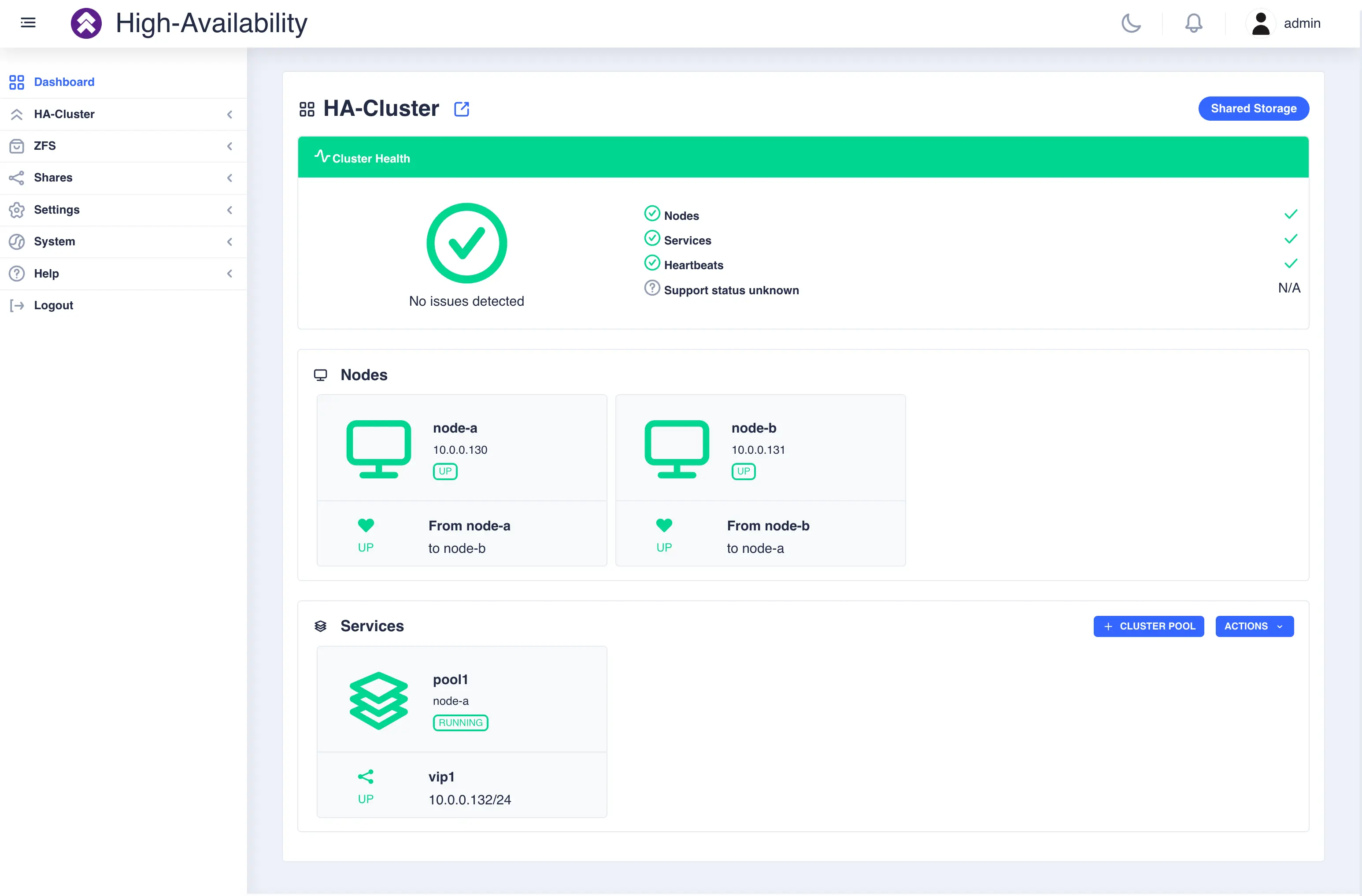
The Dashboard is the initial landing page when connecting to the webapp once a cluster has been created. It provides a quick overview of the current status of the cluster and allows you to perform operations such as stopping, starting and moving services between nodes:
For shared nothing clusters synchronisation status is provided in the status and service panels:
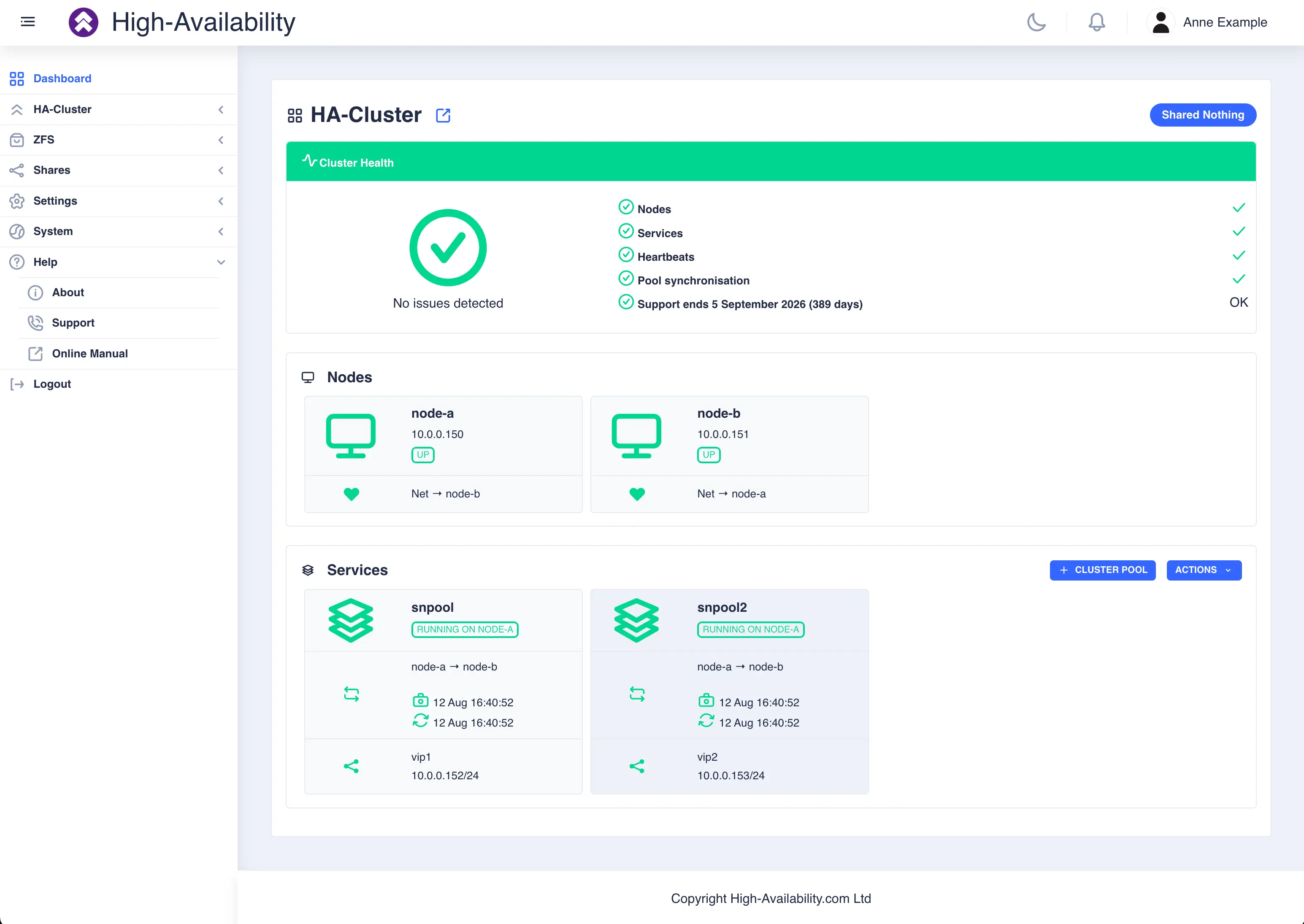
The dashboard is made up of three main sections along with a navigation panel on the left hand side:
- The status panel located at the top of the page providing a instant view of the overall health of the cluster with node, service and heartbeat summary status.
- The nodes panel detailing each nodes availability in the cluster along with its IP address and heartbeat status.
- The services panel detailing the services configured in the cluster, which node thay are running on, if any, and any associated VIPs.
Clicking on the icon for an individual node or service brings up a context sensitive menu, described in the following sections.
Nodes panel
The nodes panel shows the status of each node in the cluster:
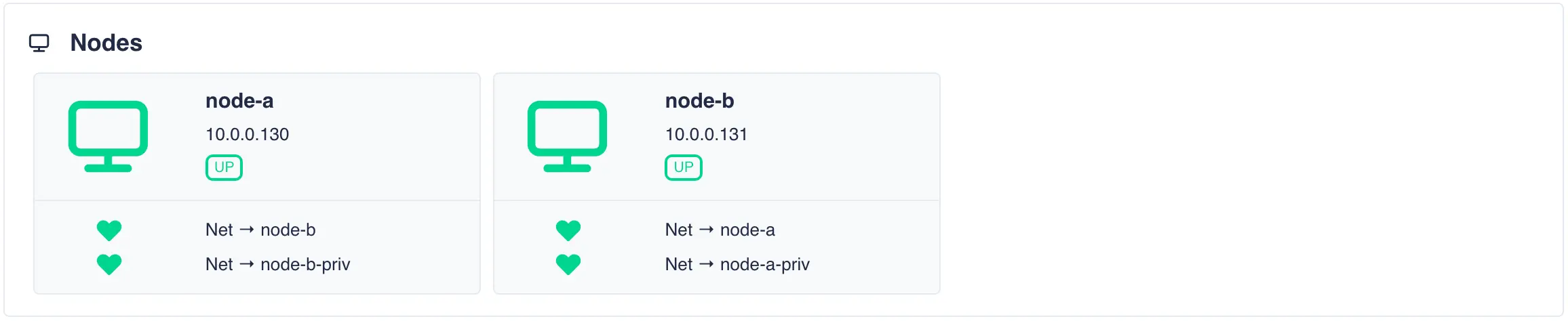
Clicking on a node opens a side menu that allows control of services known to that node. In the example above,
clicking on the icon for node-a would bring up the following menu:
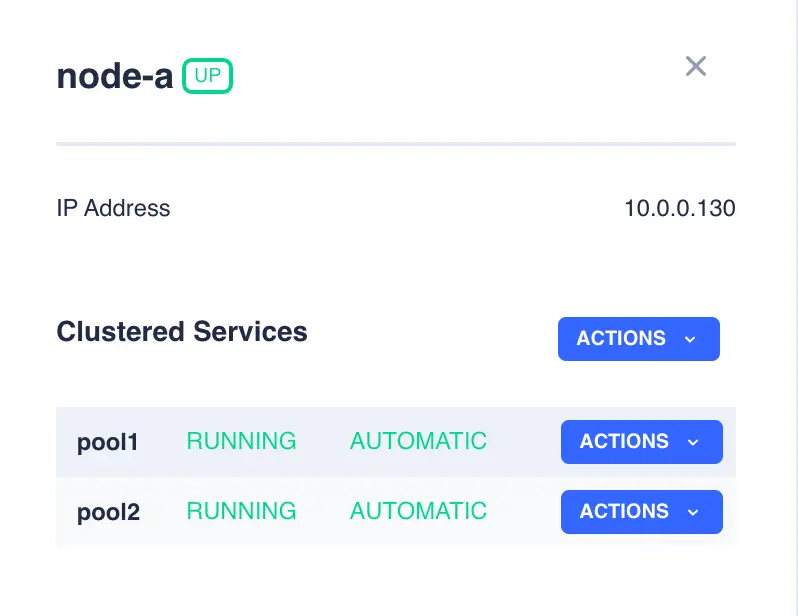
Available actions can then be viewed by clicking on the ACTIONS button in the right hand column for an individual service:
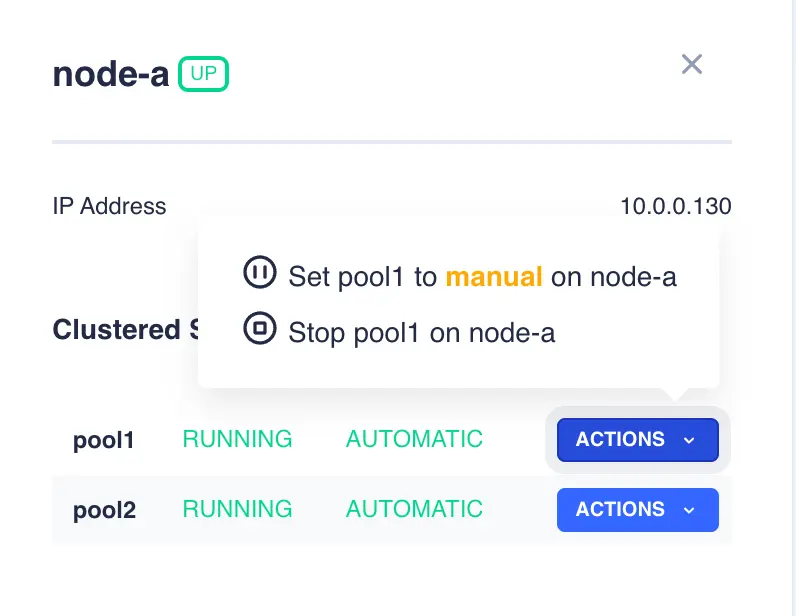
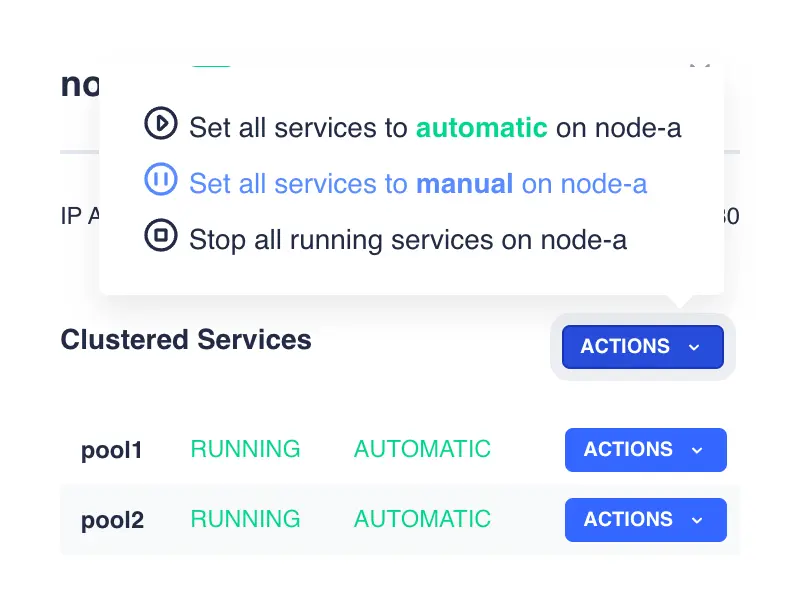
Alternatively, the ACTIONS button on the Clustered Services row brings up a menu that performs actions on all services on that node:
Services Panel
The services panel shows the status of each service in the cluster, for shared storage the panel consists of:

and for shared nothing:
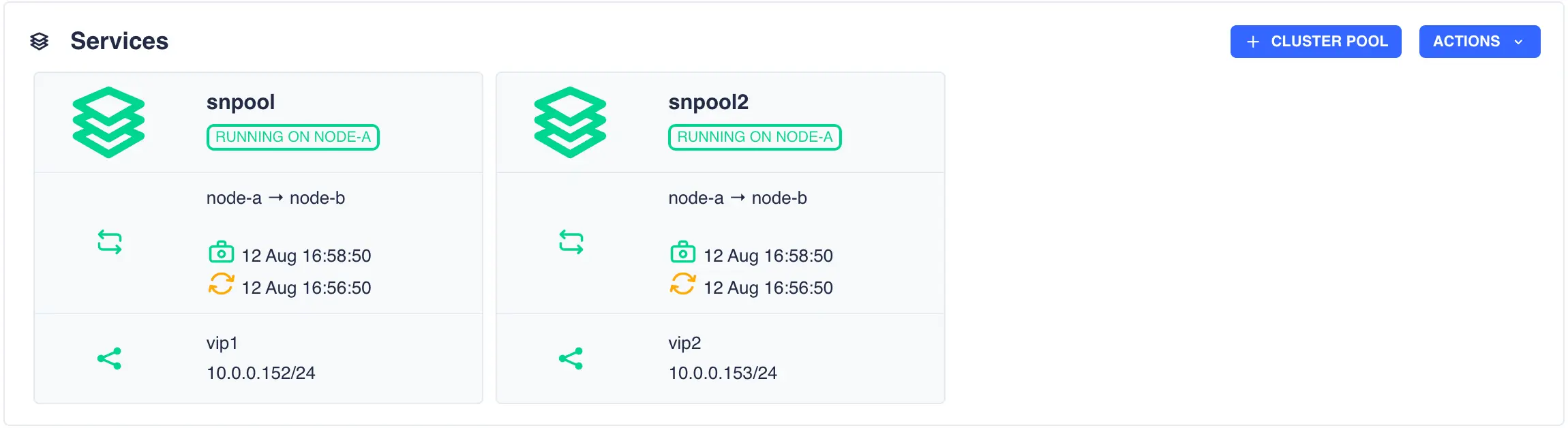
Each service panel details where a service is running and the VIPs associated with that service. Additionaly, for shared nothing clusters, a synchronisation status panel is also included.
The synchronization panel details the current state of the replication between the two cluster nodes:
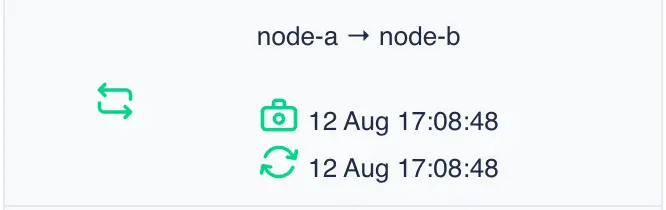
The information shown from top to bottom is:
- The direction of replication between nodes - in the above example data from
node-ais being replicated tonode-b. - The date of the last snapshot created on the active node.
- The date of the last replicated snapshot on the passive node. An orange icon indicates the passive node has yet to pull the latest snapshot.
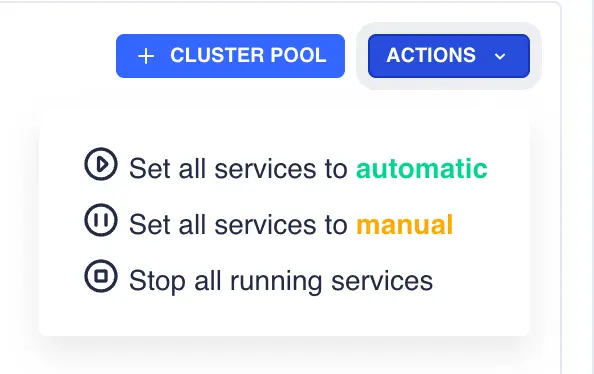
On the right hand side of the service panel the CLUSTER POOL button navigates to the ZFS pools page where pools can be created, imported,
exported and clustered; the ACTIONS menu performs actions that apply to all services in the cluster:
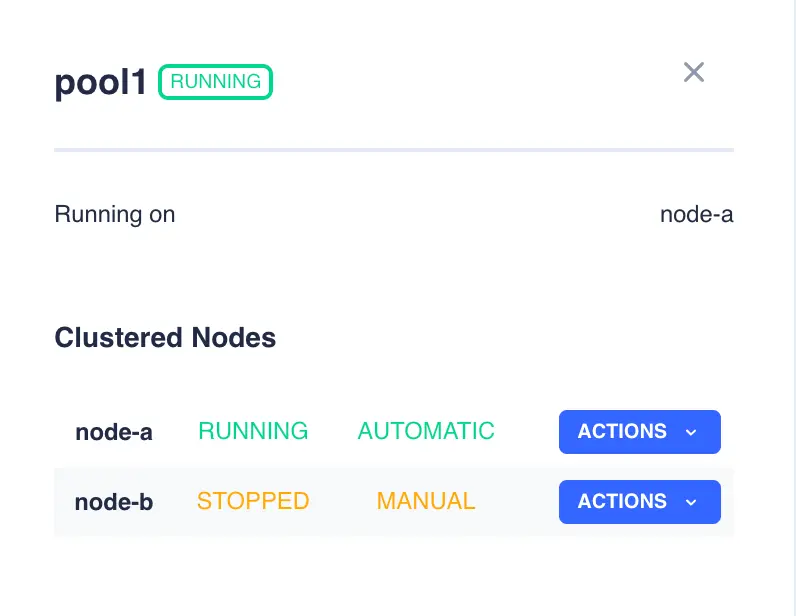
Clicking on an individual service opens up a side menu that allows control of that service in the cluster. In the example above
clicking on the icon for pool1 would bring up the following menu:
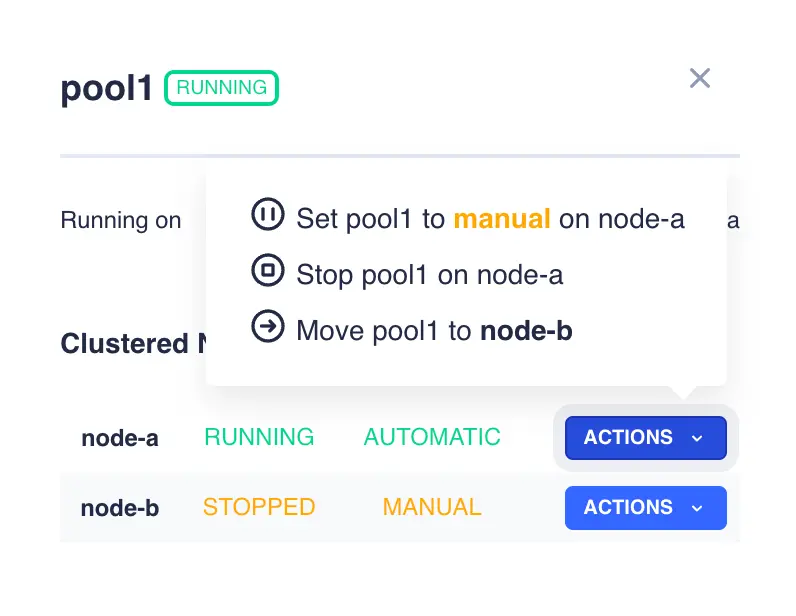
Available actions can then be viewed by clicking on the ACTIONS button in the right hand column for an individual service:
New Services
When a service is added to an RSF-1 High Availability cluster, its state will initially be set to stopped / automatic
and the cluster will start the service on the services' preferred node.